
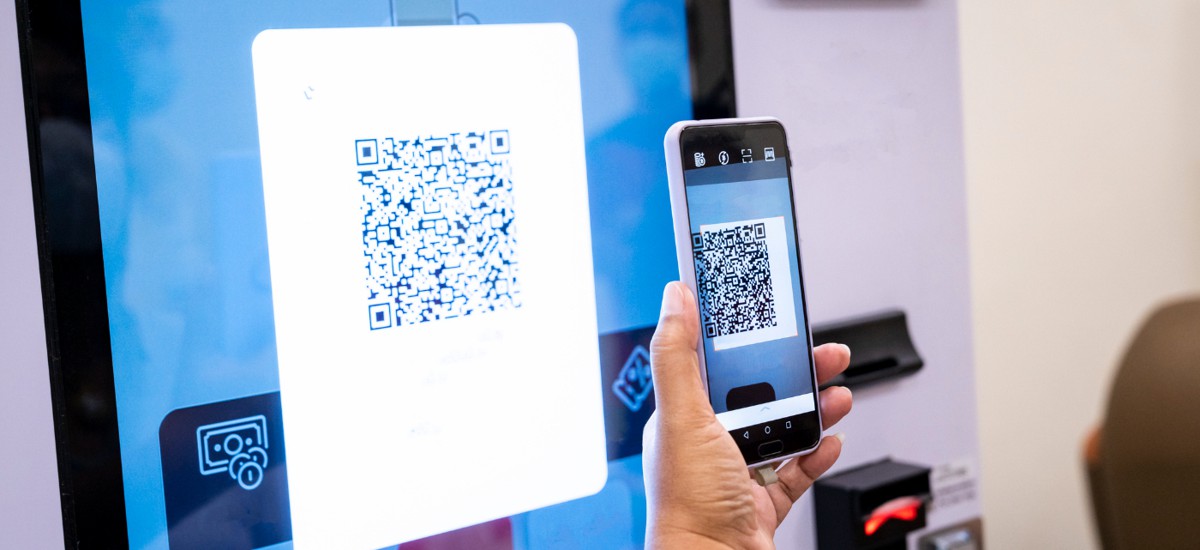
QR codes have become a convenient way to connect physical materials with digital content. They can be found on menus, product packaging, tickets, advertisements, business cards, and documents, allowing users to access information without manually typing long web addresses.
A QR scanning tool can decode these patterns and display the information they contain. Whether you are working with a physical QR code or an image stored on your device, understanding how to use a scanner properly can make the process quicker and more reliable.
What Is a QR Scanning Tool?
A QR scanning tool is designed to recognize and decode the information stored in a QR code. Depending on the service, it may use a device camera or allow users to upload an image containing the code.
After analyzing the pattern, the tool typically presents the decoded information as a URL, text, contact details, Wi-Fi information, or another supported format.
How to Use a QR Scanning Tool
The exact process depends on the tool you choose, but online image-based scanners generally follow a few straightforward steps.
1. Prepare a Clear QR Code
Start with a QR code that is fully visible and reasonably clear. If you are using an existing image, choose the highest-quality version available.
Blurry, distorted, heavily compressed, or partially cropped images may be more difficult to decode.
2. Open the Scanner
Access the QR scanning service through a compatible browser or open your preferred scanning application if you are using a mobile device.
For online scanning, check that you are using the intended website before uploading an image.
3. Upload or Capture the Code
If the tool supports image uploads, select the file containing the QR code from your device. For camera-based scanning, position the code inside the scanning area and keep the camera steady.
Good lighting and a clear view can improve recognition when using a camera.
4. Allow the Code to Be Decoded
The scanner analyzes the visual pattern and extracts its encoded information. A clear QR code can often be processed quickly.
If the tool cannot recognize the code, try a better-quality image or reposition the camera so the entire pattern is visible.
5. Review the Result
Once the code has been decoded, examine the information before interacting with it. This is particularly important when the result is a website URL.
Check whether the destination matches the source and context of the QR code. Do not assume that every decoded link is trustworthy.
Tips for More Accurate Scanning
A few simple practices can improve the scanning experience.
- Use a sharp, high-resolution image.
- Keep the entire QR code visible.
- Avoid excessive filters or image edits.
- Use adequate lighting for camera-based scanning.
- Keep the device steady when scanning a physical code.
- Try the original image if a compressed copy does not work.
These steps can reduce common scanning problems without requiring technical adjustments.
What Can You Do With a Scanned QR Code?
QR codes can contain many types of information. After decoding one, you may find a website address, text, contact details, email information, Wi-Fi credentials, event details, or product information.
The scanner itself does not determine what the QR code contains. Its role is to interpret the encoded data and present the result.
How to Use QR Scanners Safely
QR scanning is convenient, but users should remain cautious about where scanned codes lead. A QR code can direct someone to a legitimate website or to a deceptive page designed to collect information.
Before opening an unfamiliar link, inspect the URL carefully. Be especially cautious if the destination unexpectedly requests passwords, financial details, verification codes, or software downloads.
Basic Security Practices
Use QR codes from sources you recognize whenever possible. If a code appears in an unexpected message, advertisement, or public location, consider why it is being provided before scanning it.
After scanning, verify the result before taking action. If the destination looks suspicious or unrelated to the context, close it rather than continuing.
When an Online QR Tool Is Useful
Online QR scanning can be especially helpful when the code exists as a digital image. Screenshots, photographs, downloaded graphics, and documents can sometimes be processed without transferring them to another device.
This can save time for people who work primarily from laptops or desktop computers and only need to decode QR codes occasionally.
Common Scanning Problems
If a QR code does not scan, the problem may not necessarily be the tool. Image quality, damaged patterns, poor lighting, and extreme distortion can all affect recognition.
Try using a clearer image, improving the lighting, or capturing the code again. If only part of the QR pattern is visible, obtain a complete version before trying again.
Final Thoughts
Using a QR scanning tool effectively is mainly about combining a suitable scanner with a clear QR code and careful review of the decoded result. Most scans require only a few simple steps.
For the best experience, use high-quality images, follow the scanner’s instructions, and verify unfamiliar links before opening them. These habits can make QR scanning both efficient and safer.